Personalised Order Numbers
With the Personalised Order Numbers plugin for WooCommerce, you can create custom order numbers in any format and define your own increment pattern for order sequencing.
How to install the plugin?
Key Features
Generate Unique and Consecutive Order Numbers
Create clean, professional order numbers that are sequential and unique for every new order.
Reset Order Numbers Automatically
Automatically reset order numbers daily, monthly, or yearly to match your business’s tracking needs.
Separate Order Sequence for Free Orders
Assign a different numbering sequence for ₹0 or free orders to easily distinguish them from paid ones.
Custom Increment for Order Numbers
Set your own step value (e.g., increase by 5 or 10) for order numbers instead of the default +1.
Keep the Existing Order Numbers
Choose to retain original WooCommerce order numbers if you want to maintain compatibility or history.
Screenshots
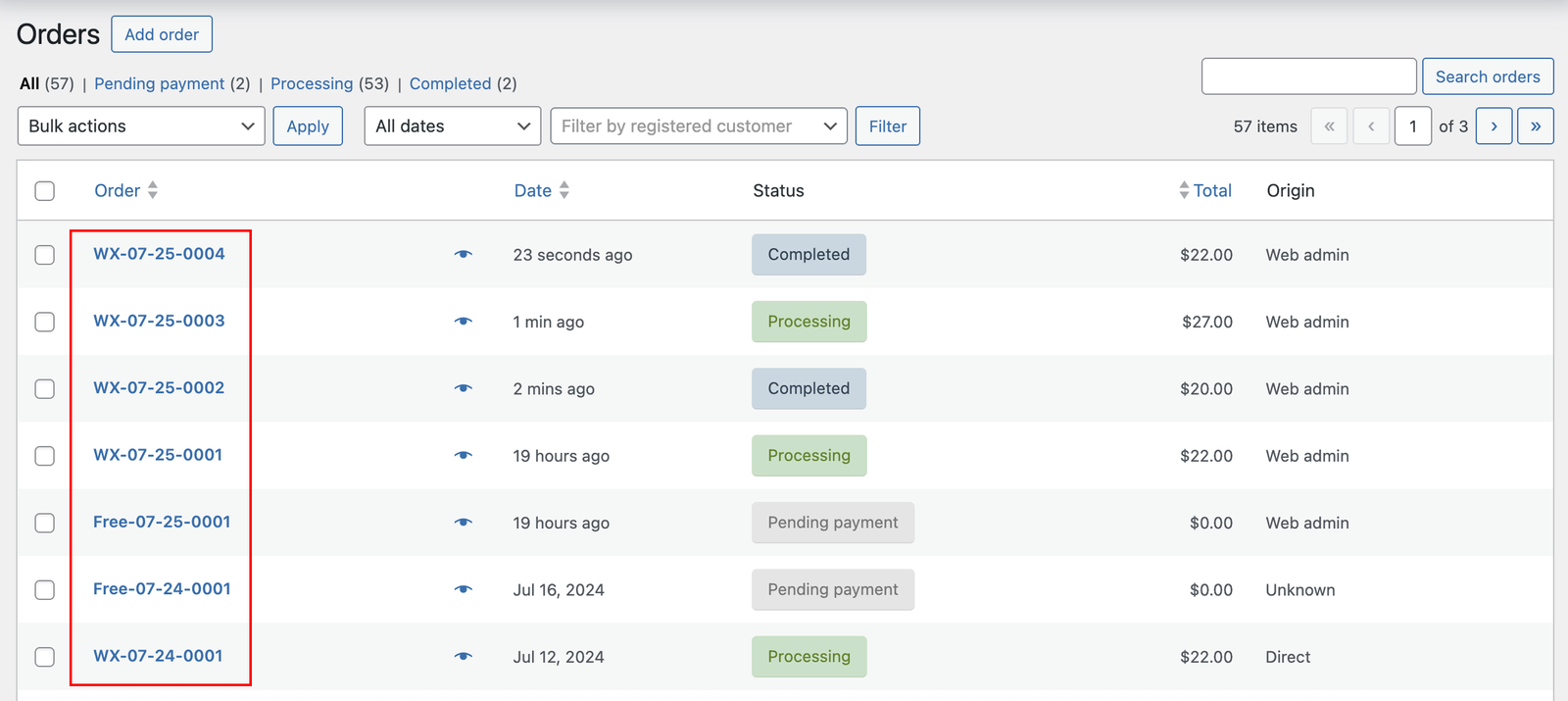
How to Get Started
- 1.Install the extension into your WooCommerce store by navigating to Dashboard > Plugins > Add New > Upload and Activate the plugin.
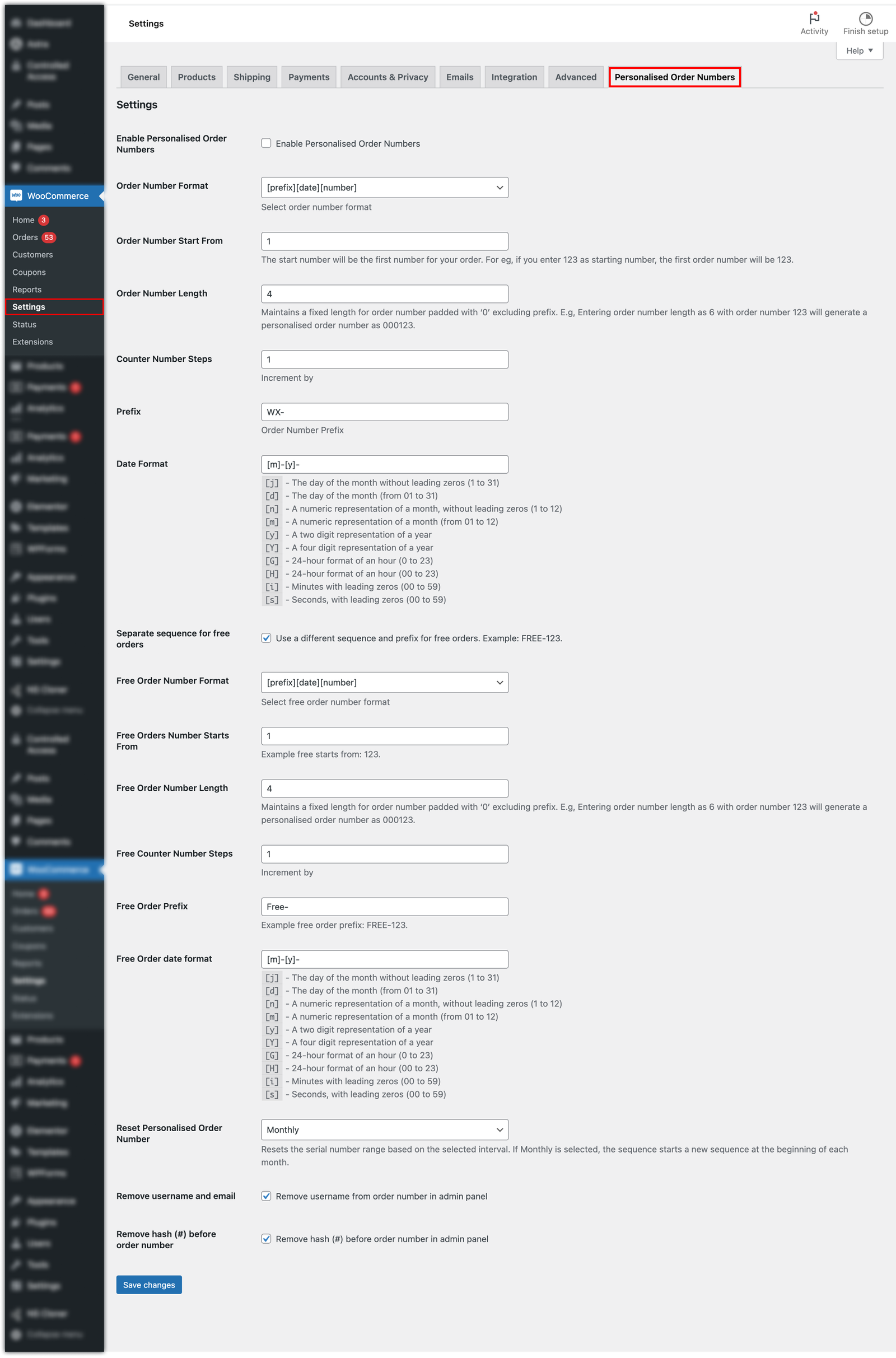
- 2. Now navigate to Dashboard > WooCommerce > Settings > Personalised Order Numbers Tab
- 3. You can now customise the order numbers like how you want using the different setting available in this tab and save changes. That’s it.
Frequently Asked Questions (FAQs)
A: Yes, the plugin allows you to fully customize the WooCommerce order number format using prefixes, suffixes, dates, sequential numbering, and more.
A: No, the plugin will only apply the new format to orders placed after activation. Existing order numbers will remain unchanged.
A: Yes, you can include dynamic placeholders such as {DATE}, {YEAR}, {MONTH}, and more in your custom format. Support for custom placeholders may also be available.
A: Absolutely. You can set the starting number, increment value, and maintain a fully sequential order number system
A: No, the plugin is designed to work seamlessly with WooCommerce’s order management system and is compatible with most plugins that rely on order data
A: Currently, the plugin applies a global format for all orders. If you need status-based or per-site formats, please contact us – we may be able to help with custom solutions.
A: Yes, we ensure full compatibility with the latest stable releases of WordPress and woocommerce.
A: Yes, the customized order number will appear in all standard WooCommerce order-related emails and can also be reflected in invoices generated by compatible invoicing plugins
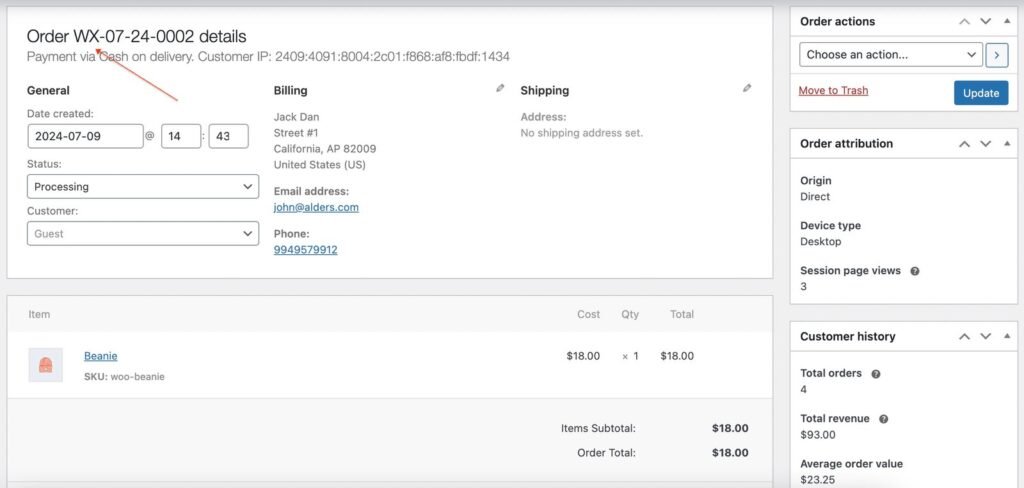
Create a test order to view the generated order number
How to configure the plugin?
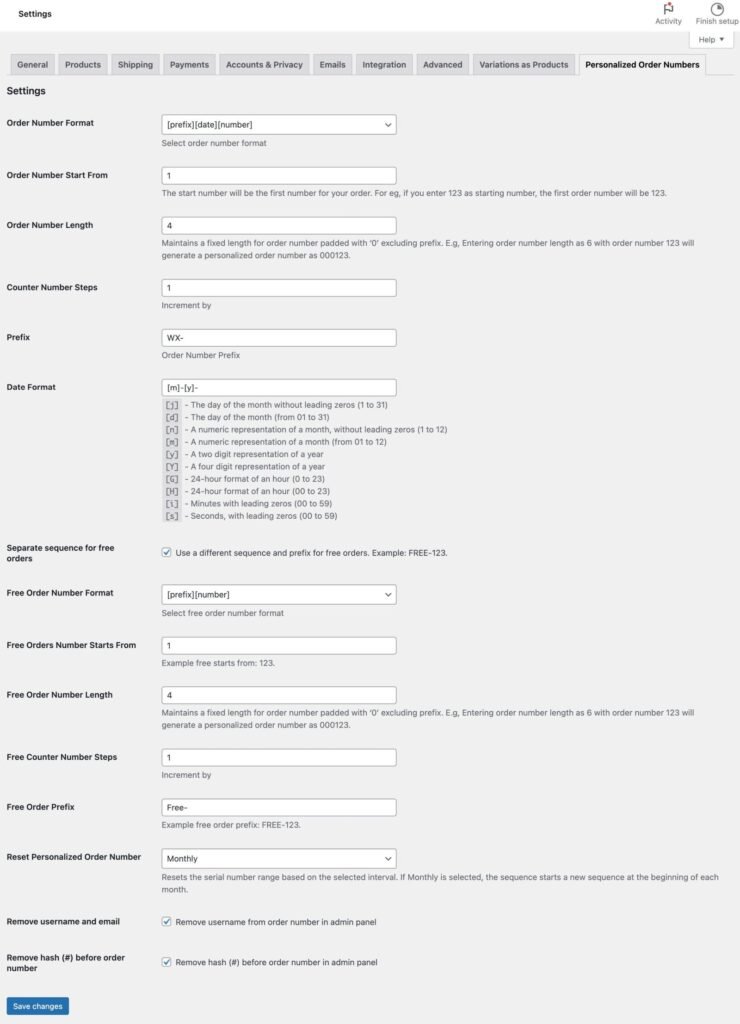
After configuring the above settings, click on Save changes button. Now you can test the order number by creating an order. Go to shop and crate your order to view the Personalized order number.
Admin Order View